Saturday, 14 April 2007

A collection of tips for people new to BSD

The first time I was introduced to FreeBSD - a BSD variant, I came away really impressed. In my opinion, from an end user's perspective, the only difference between a BSD and Linux is the difference in licencing. If you setup two machines - one running FreeBSD and the other running a Linux distribution with both having a KDE or Gnome desktop and ask a neophyte to point out which is which, there is a good chance that he will consider them both as running one and the same operating system. So whether you choose Linux or BSD depends largely on your tastes.

On the down side, the BSD variants fall far behind when you compare the size of their community with respect to that of Linux which commands a community which is many times that of the BSDs. But if you consider the ratio of knowledgable people to newbies, the BSD's fare better.

If you are a potential BSD aspirant and wish to try out any of the BSDs which include FreeBSD, PC-BSD, OpenBSD, NetBSD and DesktopBSD, then you might find the resource page put up by Daemon News quite helpful. It contains lots of tips to carry out tasks which a neophyte in BSD might initially find insurmountable.

Friday, 13 April 2007

FSF hiring - Who said it didn't pay to work for Free Software Foundation ?

The Free Software Foundation, colloquially known as FSF is a non-profit organization based in Boston (USA) whose mission is to preserve, protect and promote the freedom to use, study, copy, modify, and redistribute computer software, and to defend the rights of all free software users. Richard.M.Stallman is the founder and president of the FSF. Its board of directors include many eminent persons (many of them professors) from the academic field.

FSF is hiring and is on the look out to fill the post of "FSF Campaigns Manager". The job is on site and is based in Boston. The duties of the campaigns manager include writing, editing, speaking, and research related to FSF activist and program efforts; coordinating the GNU Chief Webmaster and the other webmaster volunteers to develop FSF and GNU web sites; planning and implementing proposals to increase fundraising; and serving as a main point of contact between the Foundation and the free software community.

The only pre-requisites for the post are that you have a passion for Free software and firmly believe in the principles of GNU apart from having excellent communication skills in English (reading, writing and talking) as well as have a flair for organizing events with some technical skills on managing a website thrown in. So those who do not have a professional degree but have the above qualification are also equally eligible for the post.

The Pay
Did you think working for FSF didn't pay ? Then think again. This post of "FSF Campaigns Manager" is a paid position and provides you $50,057/year not a small amount for the work at hand.

But wait! There is more... The other perks include the following and I quote :
  • full family health coverage through Blue Cross/Blue Shield's HMO Blue program, and subsidized dental plan.
  • four weeks of paid vacation annually (wow, a whole month),
  • seventeen paid holidays annually,
  • public transit commuting cost reimbursement,
  • 403(b) program through TIAA-CREF,
  • somewhat flexible work hours.
Tempted by the offer? Then you can send your resume to hiring@fsf.org . Better still, read the whole job offer at the FSF website.

Too bad if you are not based in Boston ...

Thursday, 12 April 2007

Install multimedia codecs in Debian Linux

Media player codecs
This guide will explain how to install in Debian all the media player codecs - which include multimedia codecs & libdvdcss which is necessary to play DVDs in Linux.

Because of licensing restrictions, Debian Linux does not ship with the multimedia  codecs necessary to play a variety of audio and video files. Instead, the users themselves have to download all the media player codecs and install it on their Debian Linux machine. Fortunately, Debian uses a fabulous package management system called apt-get which makes the end user's task in installing the codecs all the more easy.
Read more »

Wednesday, 11 April 2007

Unix Processes - What constitute a Process ?

A process is a fundamental part of any operating system - irrespective of whether they are proprietary or Free. And all Operating systems usually have a lot of processes running at any given time. This begs the question, what exactly is a process ?

A process can be considered to be a container, bundling a running application, its environment variables, the state of the application's input and output, and the state of the process, including its priority and accumulated resource usage. In short, every single application that you run on your machine will have its own unique process allocated to it for the duration of the time it runs.

In Unix based OSes, each of that unique process has a parent process from which it is forked (cloned, spawned) initially. The very first process that is created by the OS when you turn on the machine is init process. This process will always have a process id of 1. All processes are ultimately descended from the one process called init. Try running the ps command to find the process id of init.
$ ps axj
PPID PID PGID SID TTY TPGID STAT UID TIME COMMAND
0 1 0 0 ? -1 S 0 0:04 init [4]
Martin Streicher has written an enlightening article throwing more light on the concept of a Unix process. He explains the semantics of a process, some very useful commands which give information about the running processes as well as talks about forks and daemons (a special kind of process which continuously runs in the background waiting for some application to connect to it).

Sunday, 8 April 2007

Debian GNU/Linux 4.0 released

After waiting for so long (close to 2 years), Debian GNU/Linux 4.0 code named Debian Etch has been taken out of development cycle and is given the stable tag. A couple of months back, I had tried out Debian Etch while it was still in the testing stage and my impression of it was very good - what, with most up to date versions of popular and most used software packages and a pretty graphical installer to boot.

Some of the new features in Debian 4.0 are as follows :
  • A fully integrated installation process with out of the box support for encrypted partitions.
  • Graphical installer for those with enough memory for their PC
  • Use of secure apt to enhance security while installing software (Read more on apt-get usage).
  • Debian GNU/Linux 4.0 now runs on even AMD64 and Intel EM64T (amd64) apart from 9 other architectures.
  • Now can be installed from various installation media such as DVDs, CDs, USB sticks and floppies, or from the network.
  • Support for multi-architecture installation disks.

Those who are using an earlier version of Debian need just do an
# apt-get update
and an
# apt-get dist-upgrade
... to move their Debian distribution to the latest version.

Another important news especially for people administering Debian servers is that the Debian team has also updated the official Debian 3.1 version to include some much needed security fixes. The official Debian website has the full press release regarding Debian 4.0.

Monday, 2 April 2007

Ext3cow file system explained

ext3cow file system for GNU/LinuxGNU/Linux supports numerous file systems, some of them that come to my mind being ext2, ext3, xfs, jfs, vfat, ufs and so on. Here is another file system to add to this diverse collection. And the name of the new file system (which is still in heavy development) is ext3cow.

So how is ext3cow different from ext3 file system which we are most well versed with ? Ext3cow file system supports all the features of ext3 file system which include journaling. But other than that, it also has support for version control.

And to put it in layman terms, if you have formatted your hard disk with ext3cow file system, you will never lose a file - even when you overwrite it. What is more, you can go back in time and retrieve an older version of your files because this file system saves a snapshot of your files in any given time - which is what versioning is all about.

Let's look at a simple example. Suppose I have formatted my hard disk running Linux with the ext3cow file system. And I have created a file by name test.txt as follows :
$ cat "This is a test" > test.txt
$ snapshot
Snapshot on :. 10452736
The 'snapshot' command takes a snapshot of the disk. And then I overwrite the same file by entering some other text as follows :
$ cat "This is overwritten text" > test.txt
Now the file 'test.txt' contain the new sentence as is shown by the cat command.
$ cat test.txt
This is overwritten text
But as I have saved the file in an ext3cow file system, the original text is not lost and can be listed and retrieved as follows :
$ cat test.txt@10452736
This is a test
Where the number 10452736 is the unique snapshot number which we received when we executed the 'snapshot' command, which by the way is ideally run by the system at regular intervals.

And if you now cat the 'test.txt' file, you will find that it displays the latest changes. So the primary advantage of ext3cow file system over other file systems is that it is possible to take a snapshot of the disk at any given time and thus safeguard data.

Advantages of ext3cow file system
  • Version control of all your files.
  • Journaling support like in ext3.
  • You can access past directories in the same way you access past files.
  • ext3cow performance is at par with that of ext3
Drawbacks of ext3cow file system
  • There will be a slight increase in the meta data required to support versioning - in between 5% and 15%. So ext3cow file system will take up a bit more space on disk than ext3.
  • Currently there is no mechanism to delete a file in the past but this is an ongoing project and this feature might get included in future versions of the file system.
  • Taking snapshots are not automatic and will require the user to execute the 'snapshot' command.
  • The project is still in experimental stage but work is going on at a fast pace.
You may download and install the tools to create this file system at the ext3cow official site as well as take a look at a couple of ext3cow tools maintained by Tim. If you are interested in a unique project to provide a GUI interface to manipulate the files in the past, then check out the Time Traveling File Manager [Link].

Sunday, 1 April 2007

OpenSuSE 10.2 Review

When you ask someone to name a couple of GNU/Linux distributions, in most cases, you will hear the names Debian, Red Hat, Ubuntu and then, SuSE Linux which is now a days known as OpenSuSE.

The reason is that apart from it being one of the oldest Linux distributions around, it has made a name as a distribution which is robust, secure and user friendly. Originally SuSE Linux was owned by a German company by the same name. But in January 2004, it was acquired by Novell which continued to further develop and fine tune it and include more SuSE specific features to it. The end result is a distribution which has grown to have its own unique identity. OpenSuSE is a community program sponsored by Novell and is developed in an open model.

One of the foremost reason to consider OpenSuSE Linux as a very popular Linux distribution is the mere fact that in the past couple of months, it has risen from the bottom of the heap to enjoy second place, just below Ubuntu Linux, in the Distrowatch most popular Linux distributions list.

This rise in popularity is not incidental. Rather it highlights the quality of this very fine distribution.

A couple of months back, I chanced upon a DVD of OpenSuSE 10.2. While in the past, I have installed a plethora of GNU/Linux distributions, this was the first time I happened to lay my hands on SuSE Linux distribution. And to tell you the short story, I was virtually blown away with its ease of installation and use. While the partition manager embedded in the SuSE installer is not as graphical as that found in Fedora installer, in all other respects it is very functional and intuitive. One thing worth noting is that OpenSuSE comes with flash player (albeit ver 7.0) and Sun Microsystems Java 1.5 runtime environment bundled with it by default and at the time of installation you have to agree to the license requirements of the respective software.
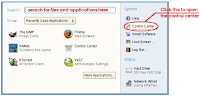
redesigned Gnome MenuFig: Redesigned Gnome Menu

The minimum specification for installing OpenSuSE Linux is a Pentium class processor, at least 256 MB RAM and plenty of disk space. The OpenSuSE installer detected all the devices attached to my machine without any problem. While it is pretty bleak to see a Linux distribution not detect any particular device barring wireless devices or internal modems, you can make sure that your laptop/desktop is supported by OpenSuSE by checking their hardware compatibility list (HCL). Once I finished installing the distribution and booted into it, I came face to face with a clean Gnome desktop. What is unique about the OpenSuSE Gnome desktop is that it includes a redesigned menu different from what you will find in the default Gnome setup. More over, the search is integrated in the menu with Beagle search playing a very important role in providing real time search. This is not surprising as projects such as Beagle search and Tomboy are developed by Novell engineers and is based on Mono language; which is also the initiative of Novell.

There is a central place called the "Control center" which can be accessed by clicking on the start bar (named "Computer" in OpenSuSE Gnome Desktop) and then clicking the "Control center" in the menu. Here all the applications are categorized by type or functionality which in my opinion makes it easy to navigate. Though the menu in the Panel of KDE is also redesigned, I found the Gnome menu much more pleasant to use than that found in KDE. But in KDE, there is an option to switch to the classic view which can be done by right clicking on the menu button and choosing "classic view". I couldn't find a similar method to switch in Gnome though.
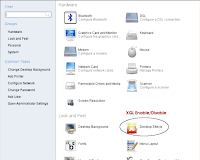
OpenSuSE control centerFig: Control center

By default OpenSuSE provides KDE and Gnome and you have to choose one over the other at the time of installation. But if you select a custom setup , then you can easily install packages specific to other window managers and desktops.

Over a period of time, Novell has also built a massive collection of documentation, tips, faqs and howtos related to accomplishing tasks in OpenSuSE which can be viewed here.

OpenSuSE Linux uses the RPM format to distribute its packages. And there are more than one ways of installing packages. But the most popular form of installing software in OpenSuSE is using YaST which does a good job of automatically checking for any dependencies.

A brief introduction to YaST

YaST is a unique tool found in OpenSuSE which allows one to do all the system administration tasks from within its GUI interface which includes package management, managing users, configuring firewall, configuring devices and almost all the other system maintenance and network administration tasks you could think of. It can also be used from the command line. YaST2 comes with three front-ends. GTK, QT and ncurses. And you can start the "YaST control center" using the command yast2. The correct front-end is automatically selected based on the available components and the current environment.

YaST supports the following modules to load the requisite GUI front-end. They are as follows :

answering_machine,  bootloader,  ca_mgm,  dhcp-server, dns, dns-server,fax, firewall,
groups, host, http-server, idedma, inetd, irda, kerberos-client, keyboard, lan,
language, ldap, mail, mouse, nfs, nfs_server, nis, nis_server, ntp-client, power-management,
powertweak, printer, profile-manager, proxy, remote, routing, runlevel, samba-client,
samba-server, security, sound, sysconfig, tftp-server, timezone, tv, users.
Here is how yast2 can be used from the command line.

To load the interface of a specific module you use the following syntax :
# yast2 <module name>
For example, if I want to add more users to the system, I can use the following command :
# yast2  users
... which will load the GUI front-end for adding users. For starting the power management utility, run the yast2 command as follows:
# yast2 power-management
.., and so on. You can also start YaST in interactive mode by passing it the phrase 'interactive'. For example, when you use the command :
# yast2 users interactive
YaST2 users> help

OpenSuSE will place you in the 'YaST users' interactive shell where you can run commands to add, remove or modify user data. After you are done, you can press 'exit' or 'abort' to come out of the shell.

AppArmor - OpenSuSE's unique security feature

While other main stream Linux distributions such as Red Hat and Debian have beefed up their defenses by incorporating SELinux into their structure, OpenSuSE has traveled a different path. Instead of SELinux, it comes bundled with its own security framework tool called AppArmor.

Novell claims AppArmor is equally robust and provides similar application level access controls with the exception that it is much more easier to configure and maintain than SELinux. The apparmor profile used by default makes OpenSuSE very secure. You can read more about Apparmor here.

Pros of OpenSuSE 10.2
  • Robust and secure GNU/Linux distribution
  • A good collection of software including easy availability of proprietary ones packaged in the SuSE RPM format. For instance, you can easily install proprietary Nvidia graphics drivers using YaST.
  • Excellent GUI front-ends for almost all system and network administration tasks.
  • Has incorporated some cutting edge features in Gnome and KDE desktop such as the redesigned Panel Menu.
  • Good all round integration of Beagle search.
  • Bundles with it Flash player and Sun's JDK 1.5 by default.
  • Has an easy graphical method to enable/disable XGL if you like special effects on your desktop.
Cons of OpenSuSE 10.2
  • To put it lightly, I found OpenSuSE 10.2 to be a memory hog. On my machine with 640 MB RAM, it was sufficiently slow. I attribute it to the number of services running on OpenSuSE by default.
  • With the recent cloud formed over Novell striking a deal with Microsoft, many in the open source and Free software community are concerned about the direction in which Novell is going to steer SuSE in the future. There are also aspersions cast on whether this fine GNU/Linux distribution will remain Free at all.