Fabrice Bellard has developed a PC emulator (Virtual machine) using Javascript that runs a version of Linux in your web browser.
You can run a variety of Linux commands in the emulator. Since its initial release on May 16 2011, this project has seen some feature additions namely - a clipboard to exchange data between the VM and the host, and support for Opera and Internet Explorer apart from Firefox.
Read more »


Showing posts with label web browsers. Show all posts
Showing posts with label web browsers. Show all posts
Sunday, 22 May 2011

Friday, 19 November 2010
Google Releases A Free, Interactive Book On Browsers and The Web
Google, in its pursuit of bringing awareness about Internet among the masses has executed a unique project in the form of an interactive book on web browsers and the Internet.
Read more »
Read more »
Sunday, 18 October 2009
How to make your website mobile friendly

Read more »
Tuesday, 1 September 2009
Opera 10 - A first look at this fabulous web browser
Opera 10 has been released. This release of Opera sports a number of alluring, new features, many of them not seen in any of its contenders. The enhancements to look out for in Opera 10 are as follows.
Read more »
Read more »
Wednesday, 12 August 2009
Install Google Chrome web browser in Linux
 Google has provided a pre-release version of its famed browser Google Chrome for Linux and Mac. However it is still very much in the development stage. You can download the latest builds of Google Chrome for Linux and Mac here.
 All the same, if you want a stable Chrome web browser to work in Linux, then there is a work around. Codeweavers has released Crossover Chromium for Linux and Mac. Read more »
Thursday, 2 July 2009
Firefox 3.5 released with support for the HTML 5 Video Tag and much more
Firefox team is striving to remain in the cutting edge of technology. The newest Firefox release namely version 3.5 is considered by many to be one of the fastest web browsers leaving its competition far behind. Mozilla claims Firefox 3.5 is over 2 times faster than Firefox 3.0 and 10 times faster than Firefox 2.x.Read more »
Saturday, 21 June 2008
Guiness World Record Certificate in your name - Firefox 3
On June 17th 2008, Firefox decided to set the Guiness Book of World Record for the most downloaded software in 24 hours. Mozilla foundation urged its users the world over to update their browsers by downloading the latest version namely Firefox 3. And the response was so massive on the D-Day that, there was an outage at the Mozilla data center for several hours. Once the servers were back online, the downloading continued and Firefox set the world record well within the 24 hours.
The record is 15,067,570 downloads (15 Million). Country wise, USA tops the list with a whooping 4 million + downloads. Surprisingly, sans the US, relatively small countries like Iran and France clocked more downloads than its larger counterparts like India and China.
If you are one of the people who downloaded Firefox on June 17th, then congratulations !!; You are a part of the Guiness Book of World Records. And the people at Firefox are ever too grateful to forget your valuable contribution.
So go ahead and download your own personalized Guiness Book of World Records Certificate (Ahem ... Firefox 3 Download Day Certificate that is) for helping set the record. Here is mine shown below.

Thursday, 12 June 2008
Opera 9.50 web browser released
Opera has released yet another version of its flagship web browser by the same name. It comes with unique features, many of which are not yet available on alternate web browsers out of the box.
I have always found using Opera to be a pleasant experience. Some of the new features found in Opera are as follows :
- Opera Link : For the very first time, all your bookmarks, speed dial and notes taken in Opera web browser will follow you around where ever you go. You can even access them from your mobile phone. The catch being you have to be using an Opera web browser. Opera provides space on their server to store your bookmarks and other settings which makes this possible.
- Quick Find : Opera keeps track of not only the web addresses you visit but also words from pages you have visited. So if you do not remember the web address but remember a word on the web page, typing it in the address bar will let you zero in on the exact web page.
- Better fraud protection.
- A sharper skin.
It’s faster, lighter and pushes us further out in front of other browsers, by blending the mobile and desktop worlds together in new and powerful ways.
But let the end users be the people who decide that. Why not visit Opera and download the latest version namely 9.5 and take it for a spin ? For all you know, you might get hooked to yet another fabulous web browser.
Sunday, 23 September 2007
Firefox reaches 400 million downloads
It is nice to see one of my favorite web browser logging 100s of millions of downloads. When I think about it, I do not even remember the last time I used Internet Explorer. Then again it has been quite a while since I have logged in to Windows too in my dual booting machine.
So a couple of weeks back, Firefox passed the corner stone of being downloaded a whooping 400 million times as tracked by the Spread Firefox website. While the number might be challenged by critics because they don't say if the data is for unique downloads or if it counts all repeat downloads too (Most probably the latter is true). For example, I myself have downloaded Firefox a total of 7 times in the past 6 months.
 Fig:Firefox download trends since the past couple of years
I feel happy that this Open Source web browser is gaining more and more patrons as days go by. But it has a long way to go if it needs to challenge the might of Microsoft's Internet Explorer. This is because even now, IE is the dominant web browser for the simple reason that it is installed by default on all Windows machines and it is used by a majority of users. While Firefox's percentage is gradually increasing, it still lags behind IE.
As an example, the graph below highlights the browser usage trends of visitors to this blog. I was really surprised that only just over 25 percent of the visitors to this blog use Firefox as their web browser. And a dominant 66 percent of visitors still use IE.
 Fig: Web browser used by visitors to this blog.
But I may add that the percentage of Firefox users is gradually increasing as days go by. And one can definitely dream of a day when Firefox will grab the majority user share of the Web browser. Kudos to the Firefox team for giving us this wonderful web browser.
Monday, 20 August 2007
A talk with Opera CEO Jon Von Tetzchner
 Ask me which web browser I use the most and I won't even pause before telling you that Opera is one of the web browsers of my choice. I have always had a soft corner for Opera web browser going even way back when it was an ad supported one. There was this thin non-intrusive bar on the top of the browser which showed a couple of ads when you were browsing the net. But now it is a totally ad-free free web browser which is famed for its innovative features and relatively small memory footprint.
And Jon Von Tetzchner is the CEO of Opera which is a Norwegean web pioneer. The main income for Opera comes from operator deals with search engines such as Google, Yahoo and telephony providers T-Mobile, Vodafone, Telfonica and so on. This means that the end users get to use the world class products of Opera such as the desktop web browser and Opera mini - the web browser for mobile phones, for free while still making money for the company.
Wednesday, 6 June 2007
Download Netscape Navigator ver 9 for Linux
Remember Netscape - the very web browser which once enjoyed a major browser market share and which was nearly killed by Microsoft's anti-competitive practices by its release of Internet Explorer ? The very Netscape navigator whose code base was then released as open source and which lead to the eventual development of the stable and increasingly popular Mozilla and then Firefox? Guess what, it has re-incarnated as Netscape Navigator ver 9.0.
Contrary to popular belief, Netscape Navigator was not dead though its popularity was severely diminished. One of the reasons for it to fall out of favor with the net users was because its succeeding versions accumulated a lot of unnecessary bloat. I remember using Netscape navigator ver 4.0 which was really sleek and then when I upgraded to the next major version, it some how did not live up to the mark of its predecessor.
The new Netscape navigator has shed a lot of fat and is now much sleeker. It is based on Firefox and has a couple of unique features built-in such as :
- Integration with Netscape portal which is now a social bookmarking site (Yes Netscape website is now a social bookmarking/voting site aka digg.com ). From within the web browser without visiting Netscape, you can share and vote for web pages that you find interesting.
- Read the latest news directly from your browser.
- Netscape navigator fixes commonly mis-typed URLs for you.
- And the highlight of ver 9 release is a link pad (Similar to what you have in Opera) which allows you to save interesting links without cluttering your bookmarks.
Netscape ver 9 is available for Linux apart from that for Windows and Mac OSX and is a modest 8.9 MB download. The minimum system requirements are 256 MB RAM and around 100 MB disk space.
If you are interested, you can download Netscape Navigator 9 and take it for a test drive.
Sunday, 11 February 2007
links2 - a cross platform console based web browser which also renders images
Recently, while I was browsing a website in Firefox, I found that it took forever to load the concerned web page. Blame it on my internet connection or on the condition of the web server hosting the web page, I was literally fed up with the wait and closed the window with disgust. It was during this time that I wondered whether it will make my browsing experience a bit more pleasant if I switched to a console web browser such as lynx.
I am aware of a number of web browsers which have a very low memory foot print and also which discard plenty of fluff - which you find increasingly in websites being built now a days - while displaying web pages. Some of these web browsers being Dillo, Lynx and Links. Dillo is a web browser which require an X server to run. But the other two are console web browsers which display only text.
Links2 is a web browser which is based on 'links' and can be run in two modes. It will display web pages only in text when run in console mode and renders images in a variety of graphics formats such as PNG, Jpeg, Gif, Tiff and Xbm when run in graphics mode from within a X window system.
You have to see it in action to actually fathom how it renders the web pages. I have included a couple of screenshots of web pages as viewed in links2 below.
 Fig: All about Linux blog rendered in links2.
 Fig: Google News page rendered in links2
 Fig: Links2 homepage viewed from links2
 As you can see from the screenshots, websites which are built using tables are rendered properly where as those which use CSS lose their layout but are still equally readable. This is because links2 does not yet support CSS.
You can install links2 in Debian based Linux distributions by executing the following command :
# apt-get install links2One of the good things I like about links2 apart from it rendering web pages in the blink of the eye are the number of keyboard shortcuts it supports. Considering that this web browser is also designed to be run in console mode, each and every function can be accessed entirely using the keyboard. Some of the shortcuts I found really convenient are as follows :
- '\' - toggle between viewing the web page and its source code.
- '/' - used to search for a word or term in the website that is displayed.
- [Esc] key - Shows a menu at the top of the browser from which you can also make choices.
- '=' - Provides further information about the web page such as its size, the web server serving the web page and its url.
- '|' - Pipe displays the header information.
- '<- ' - left arrow will take you to the previous view. '->' - right arrow will take you forward to the latest view.
- [Page up] and [Page down] - these keys can be used to navigate through the web page one page at a time. But you can also use [Space bar] and 'b' key combination for the same.
- 'g' - will pop-up a dialog box where you can enter the url of the website you want to view. To open this dialog box with the url of the current page already entered, press 'G'.
- Move the mouse pointer over an image and press 'i' to see only the image.
Features of links2 are varied and many. Some of them being support for javascript, background downloading of files, built in image display for Gif, Jpeg, Xbm, Tiff and Png file formats and built-in fonts in the executable without reliance on any fonts installed in the system just to name a few. You can read the entire list of features at the links2 features page.
Starting links2 in graphics mode
To start links2 in graphics mode which is the mode which displays the images, use the '-g' option with the links2 command :
$links2 -gThe above command will probe all the installed graphics drivers and run on the first found. The drivers that are supported in links2 are x, svgalib, fb, directfb, pmshell and atheos. But if you want to start links2 with a specific driver say driver 'x', pass the value to the '-driver' option as follows :$ links2 -driver xlinks2 also has a lot of other options such as say, you want to save the contents of a webpage to your hard disk. This is easily achieved by using the -dump option as follows :$ links2 -dump http://news.google.com > news.txt
... which will save the contents of the news.google.com page into the 'news.txt' text file. Which means, using this method you can literally strip all the html elements and save only the text into file. There are a whole lot of command line switches available for links2 from those for changing the foreground and background of the webpage that is viewed to conducting a name lookup of a web address. Check the man page of links2 for more options.
Configuring Links2
As with all things related to Linux and Unix, links2 web browser also stores all its configuration parameters in a text file. If you look into your home directory, you will find a hidden directory called .links2/ which contain all the files pertaining to the user's configuration. It is in the '.links2' directory that links2 web browser stores details such as your bookmarks, the browsing history and the per user configuration details.
The configuration details are stored in the links.cfg text file which is also created in the same location. This file is automatically created by links2 when you make changes to the configuration of the web browser and need not be edited manually by the user. But it is interesting to see the data that is entered in this file. My links.cfg file shows the following details :
# FILE: ~/.links2/links.cfg
# This file is automatically generated by Links -- please do not edit.
async_dns 1
download_utime 0
max_connections 10
max_connections_to_host 8
retries 3
receive_timeout 120
unrestartable_receive_timeout 600
format_cache_size 5
memory_cache_size 1M
image_cache_size 1M
http_proxy ""
ftp_proxy ""
download_dir ""
language "English"
http_bugs.http10 0
http_bugs.allow_blacklist 1
http_bugs.bug_302_redirect 1
http_bugs.bug_post_no_keepalive 0
http_bugs.no_accept_charset 0
http_bugs.retry_internal_errors 0
http_bugs.aggressive_cache 1
http_referer 0
fake_useragent ""
fake_referer ""
ftp.anonymous_password "somebody@host.domain"
ftp.use_passive 0
ftp.fast 0
ftp.set_iptos 1
menu_font_size 16
background_color 14540253
foreground_color 0
scroll_bar_area_color 11184810
scroll_bar_bar_color 0
scroll_bar_frame_color 0
display_red_gamma 2.2000
display_green_gamma 2.2000
display_blue_gamma 2.2000
user_gamma 1.0000
bfu_aspect 1.0000
aspect_on 1
dither_letters 1
dither_images 1
display_optimize 0
gamma_correction 2
enable_javascript 1
verbose_javascript_errors 0
verbose_javascript_warnings 0
enable_all_conversions 1
enable_global_resolution 1
javascript_manual_confirmation 1
js_recursion_depth 100
js_memory_limit 5k
bookmarks_codepage us-ascii
bookmarks_file "/home/octoedge/.links2/bookmarks.html"
extension "aif,aiff,aifc" "audio/x-aiff"
extension "au,snd" "audio/basic"
extension "avi" "video/x-msvideo"
extension "deb" "application/x-debian-package"
extension "dl" "video/dl"
extension "dxf" "application/dxf"
extension "dvi" "application/x-dvi"
extension "fli" "video/fli"
extension "g" "application/brlcad"
extension "gbr" "application/gerber"
extension "gif" "image/gif"
extension "gl" "video/gl"
extension "grb" "application/gerber"
extension "jpg,jpeg,jpe" "image/jpeg"
extension "mid,midi" "audio/midi"
extension "mpeg,mpg,mpe" "video/mpeg"
extension "pbm" "image/x-portable-bitmap"
extension "pcb" "application/pcb"
extension "pdf" "application/pdf"
extension "pgm" "image/x-portable-graymap"
extension "pgp" "application/pgp-signature"
extension "png" "image/png"
extension "pnm" "image/x-portable-anymap"
extension "ppm" "image/x-portable-pixmap"
extension "ppt" "application/powerpoint"
extension "ps,eps,ai" "application/postscript"
extension "qt,mov" "video/quicktime"
extension "ra,rm,ram" "audio/x-pn-realaudio"
extension "rtf" "application/rtf"
extension "sch" "application/gschem"
extension "svg" "image/svg"
extension "swf" "application/x-shockwave-flash"
extension "sxw" "application/x-openoffice"
extension "tga" "image/targa"
extension "tiff,tif" "image/tiff"
extension "wav" "audio/x-wav"
extension "xbm" "image/x-xbitmap"
extension "xls" "application/excel"
extension "xpm" "image/x-xpixmap"
video_driver "x" "1024x675" "" ISO-8859-1
I found this web browser really sleek and easy to use. Considering that it renders graphic images without any problem when run in X windows, this could easily be a good replacement for the mainstream web browsers where one is concerned only in reading the content of a website without the usual distractions such as flash based websites and fancy CSS. Oh yeah, you can also say good bye to most ads you see cluttering websites these days when you use links2.
Tuesday, 4 July 2006
Review: Opera Ver 9.0 - A trailblazer in the web browsing arena
 I have always been fascinated by the web browser called Opera that is developed by a Norwegian firm going by the same name. I remember using this browser even a couple of years back when IE was still the default web browser in a PC and its alternative Mozilla/Netscape had all the sleekness of a sloth. At that time, Opera was an ad-supported software. But sometime in September last year, Opera decided to remove the ads and make their web browser for the desktop completely free.
The current version of this web browser is ver 9.0 which they tout as the fastest web browser in the world. Opera has released their web browser for multiple platforms including Linux. What I find unique about Opera is its very small size even after bundling all the paraphernalia such as an email client, news and rss readers, IRC chat client and what not. Just for the sake of comparison, I opened Firefox (ver 1.5) web browser and opera (ver 9.0) each from cold start and I found that Opera consumes much less memory than Firefox even with all these extra features built in.
 Fig: Opera web browser with all the toolbars visible
Once I started using the latest version of Opera, I discovered a number of useful features which made my browsing experience that much richer.
For one, Opera has an inbuilt Notes feature similar to the KJots program in KDE which allows one to jot down notes in a book format. There is even an option to email the notes to others without ever leaving Opera via its integrated email client. Suppose I come across a useful article which I would like to read later. In Opera, I need not save the whole web-page rather, I can just select the relevant section and right-click the mouse and select 'Copy to Note' option or press the '[Ctrl]+[Shift]+C' key combination and it will be automatically filed in the Note app. And the interesting fact is that the notes can be kept in conjunction with the websites that need to be referred later. I found another use for the notes in that I could store data in notes which can then be used for simple completion of web forms.
Another feature I found really useful was the ability to view any webpage using the stylesheet of ones choice. In fact, there are a total of 8 inbuilt styles that are bundled with opera with option to create ones own styles and apply to the website one is visiting. I find this feature in a web browser god send especially when I visit websites which are created with a poor eye to color and contrast. But that is not all, Opera makes it possible for one to view just the links and images in a website. This is achieved by navigating to View -> Styles and clicking "Show images and links only". Or if I want to see the structural elements like the CSS classes and ids used in a webpage, I could select the next entry below it. I believe some of these functions are possible in Firefox too with the aid of extensions. But it is nice to see these features built in by default in a web browser.
Opera Widgets
But the one feature which pleased me the most in ver 9.0 of Opera are the Widgets which are miniature applications that run alongside Opera and live on the Desktop. Opera has made available a great collection of widgets which have a variety of uses. Some of the more prominent ones which caught my fancy are as follows :
- Clock widget - Displays an analog clock. And one can change the style of the clock by just clicking on it.
- News widgets - Shows the most recent stories from news sites such as BBC, Slashdot, Digg and so on. Perhaps we can look forward to seeing similar widgets of other prominent news sites too in the future.
- Calculator widget - Provides a cute functional calculator.
- Wikipedia widget - Search the wikipedia encyclopedia site from this widget.
 Fig: Circular tetris game widget
 Fig: Wikipedia widget
After seeing the Opera widgets in action on my Linux desktop, I couldn't resist comparing them with the Dashboard widgets in OSX.
Opera is very strong on the usability front
One look at the sheer collection of keyboard shortcuts is enough to give an idea of what I am talking about. I was able to do all the tasks in Opera without taking my hands away from the keyboard even once. In fact, even web links could be navigated entirely via the keyboard. But opera has improved on this. For one you have the mouse gesture which allows you to easily navigate to and from a webpage with the wave of the mouse which I am sure will be appreciated by many though I still prefer doing things via the keyboard.
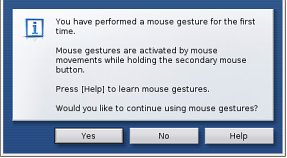 Fig: The dialog which pops up the first time mouse gestures are enabled
And suppose you want to see how the webpage you are visiting will render on a small screen such as in a cellphone for instance... By pressing 'Shift+F11' or navigating to View -> Small screen, Opera will render the current webpage in the small screen format. If the webpage is not optimized for the small screen, it will be rendered as such. One thing I really found irritating in earlier releases of Opera was the short-cut key to open a new page which was mapped to '[Ctrl]+n'. In ver 9.0, they have mapped it to the Firefox default of '[Ctrl]+t' . So there are some minor changes in the new version as far as shortcuts are concerned.
 Fig: Google News site as seen in a cellphone display
Easily block selective content on a webpage
Many times, I have come across websites which contain very interesting articles but which I find embarrassing to read in front of others because the site also contain one or two unsavoury images. Opera makes it easy to block selective content from a website. Using opera, I can easily block these unsavoury images by right-clicking on the webpage and pressing 'Block content'.And then I could click on the images to be filtered out and those images will disappear from view.
A few useful Opera commands
Opera has a couple of useful commands (or addresses) which can be used to view/set the important settings of the web browser. These commands are to be typed in the Opera address bar. They are as follows:
- opera:plugins - Lists all the plugins that are enabled in the browser like the flash plugin, java plugin and so on.
- opera:about - Gives all the useful details of Opera installed on ones machine. Like the path settings, preferences, version number and so on.
- opera:history - This lists all the pages visited for the past couple of days along with the time of visit.
- opera:cache - Opera speeds up the general web experience by caching most frequently visited webpages. This means that a person browsing on a slow Internet connection need not wait so long for each subsequent visit to a webpage. This address lists all the files cached by Opera on ones system.
- opera:config - Presents all the configuration details found in the Preferences dialog in an easy to use web interface. And the user can easily edit and change the settings in the relevant sections.
To search for a term using a particular search engine, it is possible to prepend a character before the search term in the address field. And Opera will execute a query to the particular search engine for the text one is searching. Some of the characters that could be used for this are as follows:
g - searches Google for the search term. Eg: type 'g Linux' without the quotes in the Opera address bar.
e - searches on EBay
r - searches in Google Groups
y - searches Yahoo!
Of course, it is possible to add a different search engine and use it instead of the default ones that are provided.
End Note
There is a lot more to this feature rich, standards compliant web browser and each day I find new ways of using Opera to heighten my browsing comforts. Definitely the developers of Firefox - another web browser that I am really fond of - can imbibe a couple of the path breaking features found in Opera.
Subscribe to:
Posts (Atom)