Monday, 5 September 2005

Implementing DNS on Linux - Part I

In the previous post - Understanding Domain Name System , I had explained about domain, zone and its features. Here I will explain how to implement DNS on linux.

Berkeley Internet Name Domain (BIND) is the most widely used DNS server on the internet. BIND provides a stable and reliable infrastructure on which to base a domain's name and IP address associations.
The current BIND is version 9. It has many features like providing IPv6 support, allowing 8-bit clean names and better multi-threading. BIND is maintained by Internet Software Consortium isc.org .

First step in successful implementation of BIND is to make sure that you have bind and bind-utils package installed on your system. If you are using RedHat, you can find it by executing the command(s):

# rpm -q bind
# rpm -q bind-utils

DNS Service Profile
Daemons : named , rndc
Ports : 53 (domain) and 953 (rndc)
Configuration files : /etc/named.conf , /var/named/* , /etc/rndc.*
GUI (Only in RedHat/Fedora) : system-config-bind

If you want to implement a caching name server then you should also install caching-nameserver package and for cryptographic support install openssl package.

Configuring BIND
The default configuration file is /etc/named.conf which is read by named (BIND daemon) during startup or service reload.

/etc/named.conf
  • Comments can be of C,C++ or Shell style.
  • The contents of the file is divided into blocks delineated by braces '{}' . Each block can contain sub-blocks within. Each block ends with a semi-colon.
  • Directives options, server and zone precede the blocks.
Options Directive
Commonly used global options

  • directory : Base directory of all relative paths specified in named.conf
  • forwarders : Server forwards queries it can't answer to the name servers at the IP address in the list. If it gets no answer, it will try a root name server unless the forward-only option is also set.
  • allow-query : Specifies an address match list of hosts allowed to query this server. If this option is not set, any host can query the server.
  • allow-transfer : Like allow-query, specifies hosts that may copy the database. Should be used to limit zone transfers. By default zone transfers are not permitted unless explicitly stated using the allow-transfer statement.
Eg:

#FILE : /etc/named.conf
...
acl "mynetwork" { 192.168.100/24; }; # Gives a name for the network
options {
directory "/var/named";
forwarders { 203.22.11.121; };
allow-query { mynetwork; };
allow-transfer { mynetwork; };
};
...

Address Match Lists - acl

Address match list is a list of semi-colon seperated IP addresses, networks, or named address match lists.
You can use acl to create a custom named address match list as shown in the above snippet.
Trailing non-significant zeros may be dropped. For example you can denote the network 192.168.5.0 as 192.168.5 .
acl makes the configuration easier to read and maintain.

For acls there are 4 pre defined named address match lists available. They are as follows :
  1. none : No IP address matches
  2. any : All IP address match.
  3. localhost : Any IP address of the name server matches.
  4. localnets : Any network on which the name server has an IP address matches.
For example, to create an acl which matches only the server, we write it as follows:

acl "mylocalmachine" { localhost; };

One of the main benefits of ACLs is that they make the configuration file easier to maintain and more human readable. They provide a central place where the IP addressed may be changed which is considerably easier than replacing those IP(s) throughout the file if a change needs to be implemented.

Zone directive
Master and slave zones are declared with the zone directive in the /etc/named.conf file. Every non-cached domain name must have a master zone so that authoritative records can be generated for queries.
For Example:

zone "mysite.com" {
type master;
file "mysite.com.zone"; # File name should indicate the zone.
};

zone "kernel.org" {
type slave;
masters { 192.168.192.5; };
file "kernel.org.zone";
};

Note: Slave zones look similar to their masters counterparts. The 'master' sub-directive must occur if the 'type' sub-directive equals 'slave'. A 'file' directive is used to store a local copy of the database which lessens the load on the master server. However, it is not required.

Reverse Lookup Zones
You also have to set reverse lookup zones. This is done as follows:
  1. Determine the network the zone should cover. For example, let us consider the network 172.100.10/24 .
  2. Reverse the order of octets in the network address. From above, we take 172.100.10 and reverse it to 10.100.172 .
  3. Append in-addr.arpa to the reversed string. Appending on to the result of step 2 we get 10.100.172.in-addr.arpa .
So the syntax for reverse lookup zones will be -

zone "10.100.172.in-addr.arpa" {
type slave;
masters { 172.100.10.1 };
file "172.100.10.zone";
};

Special Zones
Root Zone - Every BIND configuration must include a root zone. The root zone is used when a query is unresolvable by any other configured zones . The type of root zone is 'hint'.

zone "." {
type hint;
file "named.ca";
};

The file 'named.ca' contains information about root servers on the internet. This information rarely changes, but the latest version can always be obtained from rs.internic.net .
Loopback Zone - Though not strictly required, they should also be specified. Many programs like the X window system use local UNIX sockets to emulate IPC queues between cooperating processes. These sockets are bound to 127.0.0.1, the loopback address. Loopback zones should never be slaves.

zone "0.0.127.in-addr.arpa" {
# Specified like other reverse lookup zones.
};

This brings us to the end of editing the /etc/named.conf file.

In the next part, I will explain the syntax of the zone files which reside in /var/named/ directory.
To be Contd ...

Sunday, 4 September 2005

Understanding Domain Name System (DNS)

Domain Name System (DNS) makes it possible to refer to Internet Protocol (IP) based systems (hosts) by human-friendly names (domain names). Name Resolution is the act of determining the IP address (or addresses) of a given host name.

Benefits of DNS
  • Domain names can be logical and easily remembered.
  • Should the IP address for a host change, the domain name can still resolve transparently to the user or application.
The structure of Domain Names
  • Domain names are separated by dots, with the topmost element on the right. Eg: www.yahoo.com . IP addresses have topmost element on the left.
  • Each element may be up to 63 characters long. The entire name may be atmost 255 characters long.
  • The right most element in a domain name is called the Top-Level Domain (TLD). Referring the above example (www.yahoo.com), TLD is 'com'.
  • If a domain name is not shortened, it is called the Fully Qualified Domain Name (FQDN). For example, briefcase.yahoo.com can be specified by a machine in the yahoo.com domain as either briefcase.yahoo.com (FQDN) or as briefcase.
Host names map to IP addresses in a many-to-many relationship. A host name may have one or more IP addresses. Conversely, an IP address may have multiple host names associated with it.

Hosts that are designed to perform email routing are known as mail exchangers. These machines should have special purpose records in DNS called Mail eXchanger (MX) records. When a SMTP server or mail server, needs to send mail to a remote domain, it does a DNS lookup for the Mail Exchanger (MX) of that remote domain. A domain can and should have multiple mail exchangers. Mail that cannot be sent to one mail exchanger, can instead be delivered to an alternative server, thus providing failsafe redundancy.

Different types of Domain Name Servers
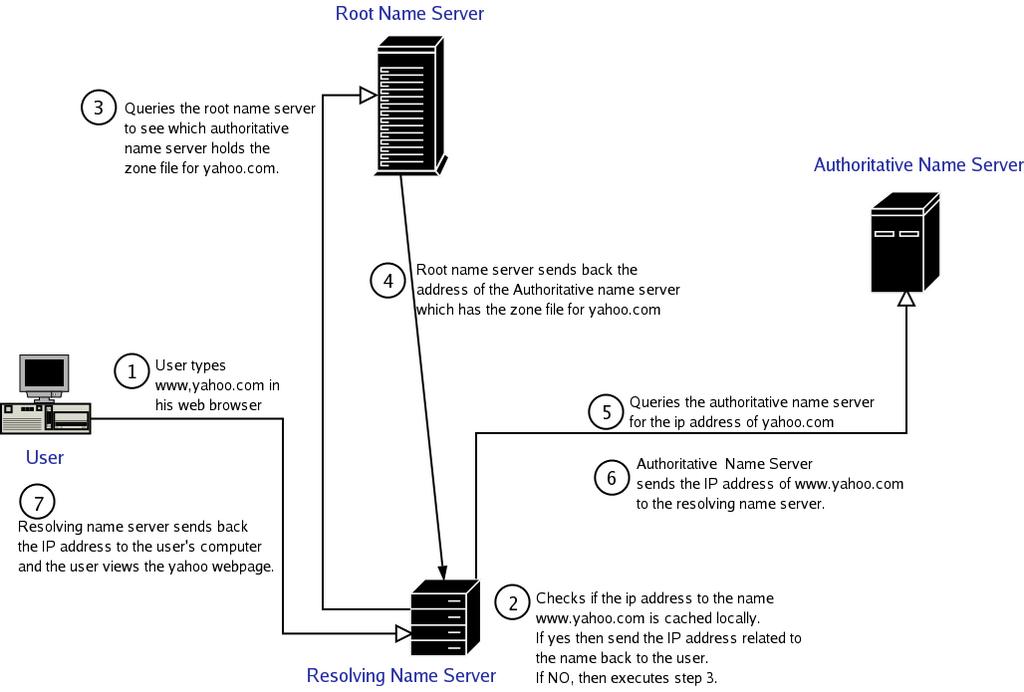
  1. Root Name server - Each top level domain (such as in,edu,com etc) has one or more root name servers which are responsible for determining where the individual records are held. These servers are fairly static and every machine on the internet has the capability of reaching any of them. A root name server is allocated like just one to three per country. For example, India has only 2 root name servers.
  2. Authoritative Name Servers - These are the servers that the Root name servers send queries to. These servers hold the actual information on an individual domain. This information is stored in a file called a zone file. Zone files are updated versions of the original HOSTS.TXT file.
  3. Resolving Name Server - These are the servers that do most of the work when you are trying to get to a machine with a certain host name. Besides being responsible for looking up data, they also temporarily store the data for host names that they have searched out in a cache, which allows them to speed up the resolution for host names that are frequently visited.
Zone
A zone keeps the information about the domain database. It does this by maintaining two types of files:
Zone File - It is used to map host names to address, to identify the mail servers, and to provide other domain information.
Reverse Zone File - This file is responsible for mapping IP address to host names, which is exactly the opposite of what the zone file does.

Note: The zone file and the reverse zone file has to be maintained by the user.

Name Server Hierarchy
Master Name Server - Also called primary server. This contains the master copy of data for a zone.
Slave Name Server - Also known as secondary server. This provides a backup to the master name server. All slave servers maintain synchronization with their master name server.
A zone may have multiple slave servers. But there will be only one master name server per zone.

Fig:
Step - by - step details of domain name resolution.


Friday, 2 September 2005

AutoPackage - The vendor neutral installer for Linux

When ever I decide to download and install a software on Linux, I am given the choice of a plethora of packages to download - each targeted at a particular distribution. And many times different versions of the same distributions needing different packages. For example, if I am using Fedora Core 2 and I want to download and install a software, then it will have separate packages for debian, fedora, redhat, mandrake and so on ; and I have to choose the package targeted at fedora. And if by any chance you don't have a package of the software for your distribution, you might have to download the source and compile it yourself and install it.
Two days back, I decided to download and install the Super Tux game on Linux. When I visited their site, I found that they had only one single binary package targeted at all Linux flavours which I found really surprising. I read a little bit more and came to realize that they have used autopackage to distribute their software.
What is autopackage ?
In a end users perspective, autopackage lets you install an up to date software without any hassles like dependency issues and more importantly, you don't have to choose which distro you run based on how many packages are available.
For developers, autopackage lets you create binary packages for Linux that will install on any distribution, can automatically resolve dependencies and can be installed using multiple front ends (command line, GUI etc).

Coming back to the story, I downloaded the file supertux-0.1.3.x86.package from the Super Tux game website which was a 6.7MB download. Then according to their directions, I set the executable bit for the software as follows :

$ chmod ugo+x supertux-0.1.3.x86.package

Note: You can also do this in KDE by right clicking the file, choosing properties and then clicking the permissions tab and checking the "is executable" checkbox.

Now I executed the file by double clicking on it. You could also execute the file in command line by entering the command :

$ bash supertux-0.1.3.x86.package

At the time of execution, I did not have autopackage installed on my system. So it offered to download and install the autopackage software from the net. This is the message I got:

autopackage for "SuperTux platform game"
The installation of this software requires some additional support code to be installed.


A] If the support code is found in a local directory, it will be used.

The file containing the support code will be called:
"autopackage.tar.bz2"
or

B] If there is an active Internet connection, the support code will be

downloaded from:
"http://autopackage.org/latest/autopackage.tar.bz2"


Proxy users should ensure the http_proxy environment variable is
set, otherwise the download may fail.


Selection B --> OK to download and install support code now? (Y/n): Y


I typed 'Y' and it automatically downloaded the autopackage software (a small download) and installed it on my system. During installing, it gave me the choice of installing it system wide which I accepted for which I had to supply the root password.

After this the installation of the game started. Here also I was asked for the root password to install it system wide. And the installation completed without a hitch.


Things to remember
1) Autopackage installs the software by default in /usr directory. If you want to install it elsewhere, you have to modify the file /etc/autopackage/config and change the autopackage_prefix section to point to another location.

# FILE: /etc/autopackage/config
...
autopackage_prefix="/usr/local"
...

Or you can also use the --prefix switch while installing using command line.

2) Autopackage uses the package program to manage (install, uninstall) the softwares. For example, to uninstall the Super Tux game, I just run the following command by logging in as root :

# package remove supertux

It is as simple as that.

Advantages of Autopackage
  • Supports automatic dependency resolution like in apt and emerge.
  • One common package for all known Linux/Unix distributions.
  • Double click and install softwares like in Windows OS.
  • Choice of GUI based and command line method of installation.
Drawbacks of Autopackage
  • If you install using autopackage, it will not update the RPM database.
  • There is no package signing.
  • Autopackage cannot be used to build Linux distributions.
  • Is not cross-platform. Supports only x86 and x86-64 (might change at a future date).


The Super Tux game screenshot

Thursday, 1 September 2005

Scribus - The free DTP software for Linux

Scribus is a robust desktop publishing (DTP) GPLed software for Linux and other Unixes.

What is Desktop Publishing (DTP)

Desktop Publishing (DTP) also known as prepress publishing combines a personal computer and WYSIWYG page layout software to create publication documents on a computer for either large scale publishing or small scale local multifunction peripheral output and distribution.

The term "desktop publishing" is commonly used to describe page layout skills. However, the skills and software are not limited to paper and book publishing. The same skills and software are often used to create graphics for point of sale displays, promotional items, trade show exhibits, retail package designs and outdoor signs.

A DTP software is a page layout software which gives users great flexibility in placing objects like images, text, and logos in the exact place where you want them. A DTP is commonly used in advertising and publishing firms to create print ready documents, flyer's, CD covers, advertisements, greeting cards, company brochures, newsletters and posters.

All newspapers around the world use DTP software to layout the news matter before it is send to print. Using a DTP software you can create files which print easily at your commercial printer (printing press). The industry leaders in DTP software are Adobe (Pagemaker) and Corel (Draw) which are commercial ventures and which support only windows platform.

But now Linux has got its own DTP software in Scribus which rivals these market leaders in the features it exhibits.

Fig 1: Cover page of a magazine designed in Scribus.


Fig 2 :The content of the magazine which displays the images and the text in a beautiful manner.
Fig 3: Easily create interactive PDF forms using scribus.

Scribus supports professional publishing features such as CMYK colour (Cyan,Magenta, Yellow, blacK) separations ,ICC colour management and embedding ICC profiles in PDF documents for accurate screen to print color, which are a must in any DTP software. Other features include importing and exporting to PDF, EPS (Encapsulated PostScript), SVG (Scalable Vector Graphics) and more common formats like text, images and so on. There is a great set of tutorials for those interested in using Scribus at docs.scribus.net.

Wednesday, 31 August 2005

Vim - The powerful simple editor

You select any Linux/Unix OS distribution; from the spartan linux which fits on a floppy to the industry heavy weights like redhat and suse; you are guaranteed to find the vi editor. So it is really worth ones time to learn how to use this powerful but simple editor. Vim is the modern version of the vi editor. Learning to use vim (vi) contains an initial learning curve. But the power it gives the user to accomplish complex text manipulation with just a few keystrokes makes the trouble taken to learn worth it.

Here I will explain a few commonly used commands in Vim. Vim (vi) is an editor with modes of operation. There are three modes of operation in vim. They are as follows :
Read more »

Who owns which port ?

Linux contains a lot of command line tools which make the job of a network administrator easier. One of them is netstat. Netstat is a multi-purpose network informantion tool. Using netstat, you can find which port is used by which process or user by using the following command:

# netstat -an | more
There is a utility called fuser which also tells you which user and process owns a port. For example, if you want to find who owns port 631, you execute the following command:

$ fuser -v -n tcp 631
Note : Ports below 1024 are reserved for common services , and only root can use them. Standard port numbers can be found in /etc/services file. The rest of the over 65K ports can be used by normal users or processes.

Convert MS Word Files to Other formats using Abiword

Abiword is a word processor which can be used as an alternative to popular commercial counterparts. It comes installed by default on most Linux distributions.

Did you know that you can convert from one file type to another in the command line using Abiword ? This is how it is done. Read more »